From workmate to Metalwork-mate

When a workmate goes heavy metal

For a bit of outdoor practice welding, I made a wooden mount to securely hold a vise to an old workmate.

First step: gather up some scrap lumber to make a nice base that the top surface of the workmate can really grip into. No movement up or down.

It’s ugly but it’s solid. Yes, those old workmates were still made in Canada.

The problem: after a bit of sparking and arc-ing and metal melting, there are some nice scorch marks on the mount. Not good. I’d like that old workmate to last.

Fortunately, there are some other scraps around. Metal and wood.

First step: cut out a thick piece of board to make it a nice rigid surface. Build up the underside the same way as the vise mount in the pictures above so that it has a nice, strong hold from the workmate.

Pro tips:

  • Open the workmate as wide as it will go
  • The bottom support board that will go under the workmate top should be just a bit narrower than the widest opening at the top of the workmate. That way it can slide through
  • The middle pieces should be about 1″ inside that board (see first picture of the vise mount above).
  • So the top surface board in the picture above will be about the width of the workmate surface once it’s closed up to grip the mounting pieces underneath. That will be about 2″ less than the width of the workmate when completely open.

Next: some scrap sheet metal. What I had on hand is a little too thick for the metal shear in our home at the DDO. Break out the reciprocating saw with a metal blade. Cut to the size or the surface board plus 2 inches on each side.

That saw leaves some rough edges. File’em down.

Next, take it to the metal brake to bend the edges. 1 inch on each side. Did I mention we have an awesome metal brake at the DDO?

Perfect! A nice top that covers the edges.

Drill a few holes for mounting things.

Yeah, yeah, I know. The vise is mounted a little inboard. Did that on purpose for more stability. The workmate is not the most stable thing in the world. I can add another set of mounting holes later.

That worked nicely. So why not take it a step further for even more versatility??

There you have it – the Metalwork-mate.

Now I can get back to more welding practice. I need it, as evidenced by the hardy hole I welded to the end of the anvil.

Closer inspection of the weld on one side of the base indicates a little too much power applied. The hardy-hole hole.

Oh well. At least I have a nice workbench for more practice.

The Great Canadian Antenna

Can it get anymore Canadian than this?

Long-time members and readers may remember the Great Canadian Alligator Clip and how we put it to good use keeping some librarians nicely grounded.

What could we do for a patriotic encore?

The answer came to us from ylab friend John/VE3IPS. We were storing some old radios in a shed, and sent him this picture.

John’s reply: “Luv the snow shoe antenna….40m is open. Work some”

40 metre? At that length? John may be the McGyver of antennas, but in this case, he’s out of his mind… in a different way than he’s usually out of his mind,

Nevertheless, challenge accepted.

A quick measurement of the length, a basic calculation, and we figured that the pair was not to far from the ideal length for a 6 metre dipole.

The tails of the snowshoes are hollow, and just a bit smaller than a half-inch bolts diameter. Perfect. The magnesium is so soft that with just a bit of torque, the bolts nicely tap themselves in.

From there, strip some coax and tie in the ends of both shoes

Now bolt the shoes to a stand.

, and we have something that looks… nah, I can’t call this reasonable.

We hooked it up to our handy little nanoVNA, and it gave us an initial SWR of 4.4. But that’s down in the basement, too close to other metal object. Tighten the connectors, a bit more jiggery-pokery of the cables, better location and we got it down to 2.3. Best result, as predicted, is on the 6 metre band.

Another radio friend John/VE3BOF brought in a more expensive SWR meter and confirmed the 2.3 measurement. And being the nice guy he is, he also brought in a radio that supports 6 metre.

We put the antenna outside on a cold snowy evening and to try it out. Sloth, expediency and the lack of a decent extension cable kept the antenna pretty close to ground level.

The results? We were receiving!

Transmitting was another matter. By dumb luck, VE3NRT was on a 6 metre net, operating from about 20 km away. With some repetition, he was able to hear us and make out what we were saying.

We’re guessing the shape of the antenna, what with all the holes and different paths to the tip, made transmitting a bit of a disaster.

Would a higher location make a difference? That research will have to wait until spring. If you look at the bottom right of that last picture, there’s some white stuff on the ground. Those snowshoes are going back to their original use.

Bottom line: if you want an emergency antenna, pack a roll of wire. You’ll dramatically increase your chance of rescue. Unless, of course, you’re in an area where a good pair of snowshoes would help you trudge out of there.

Winter Blacksmithing

Hammered. The metal. Not us.

On Saturday November 19th, a few ylab members and friends met up at FireSword Forge in Guelph for an intro to blacksmithing with expert blacksmith David Brandow and our own Metal Master Miro.

Braving the cold and snow was easy – we brought a lot of equipment, with four forges to warm the hands and the steel. Blacksmith Dave provided his outdoor forge, Miro brought two more, and ylab friend Stephen brought a another. Add 7 anvils – enough for everyone to have their own and to put fear in the hearts of the local coyote population – and a pile of tools from Dave and Miro, and we were set for a great day.

A Scout leader can only go so long without a good fire.
Schools open? Schools closed? Tired of the indecision? Get your frustrations out by hammering on something.
Anvils and stands we made at Ylab took the hammering!
File this one under fun day at the forge.
Forges much hotter than normal campfires. Never seen a marshmallow burn that fast off the stick
Applied Materials Science. Gotta hammer in those lessons.
Cranking away. But not cranky.
Cold day. Warm smiles. Would we do this again? Yes we would.

Big thanks to Blacksmith Dave and Metal Master Miro for organising everything, to Miro and Stephen for bringing in so much equipment, to Danielle and Karen for the food shopping and prep, and to all the ylab members who spent the long hours making the anvils.

CNC: Great progress and more materials

What else did you think we would test with?

The bad news: back to the drawing board Easel

We made more progress this week with our Shapeoko2 CNC machine.

But first the bad news: we can’t use the Carbide Command software to run it. Carbide is the manufacturer of the Shapeoko machines. Their software doesn’t support anything older than the Shapeoko3.

So… we’re still using the Easel web-based software. It’s good enough to do the job.

The good news: it’s working great!

After last week’s initial test with styrofoam, we went full steam ahead with more solid materials.

We started with the easy stuff, MDF, and moved up to plywood and solid pine.

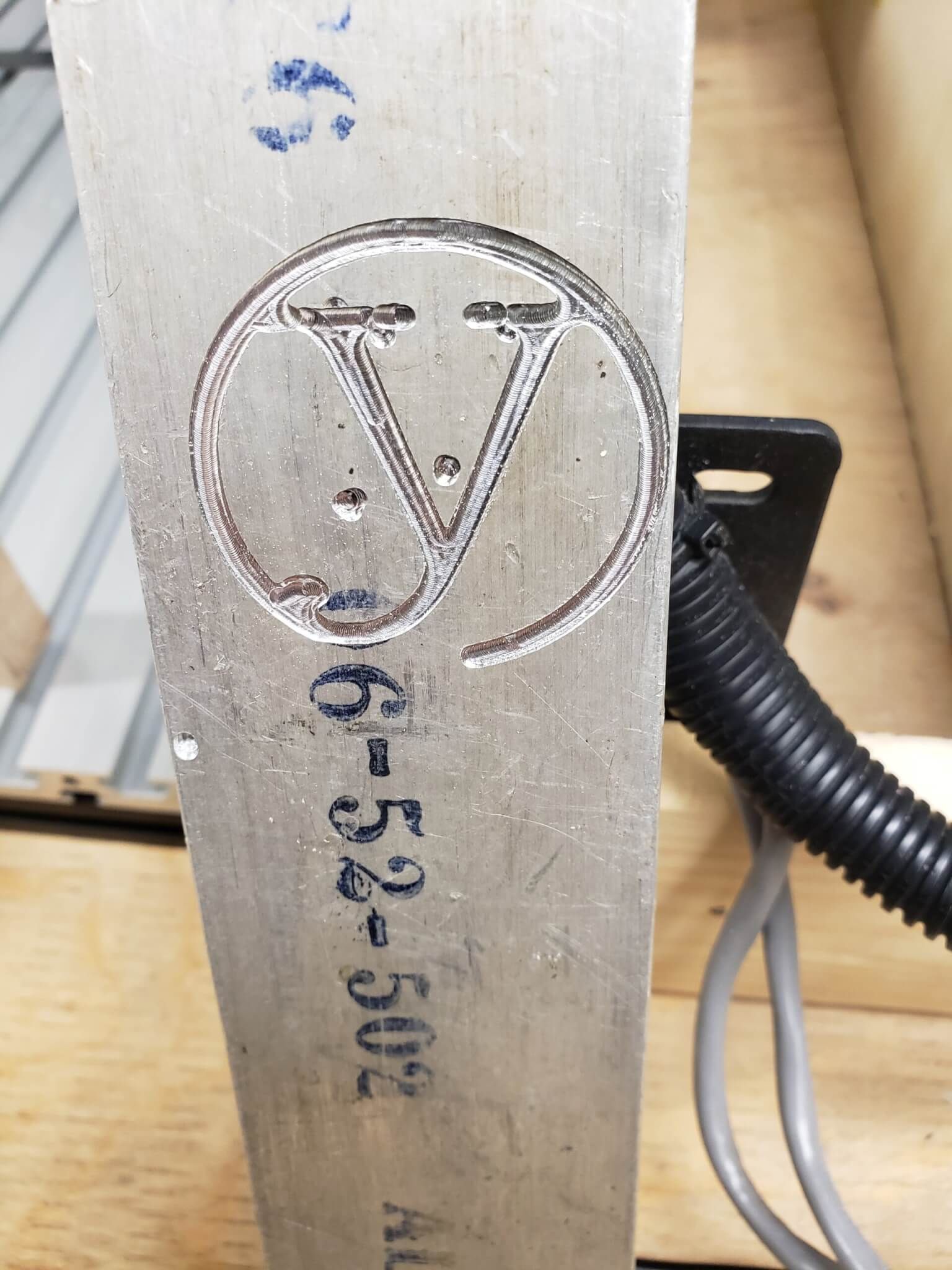
It’s a tradition at ylab to baptise every new machine by having it print the ylab logo. That’s what we did on the first 3D printer we got our grubby hands on, and then with our laser cutter.

We found that the harder the material, the better the results.

Since the carving bits are carbide and rated for aluminum… well, we looked around and found a nice flat piece.

It’s gotta be clamped down solid!

That metal has to be held down firmly. We made good use of Metal Master Miro’s clamping blocks, which we covered in last week’s post.

With the Easel software, we specify the material, and it handles all the speed, cut layer depth and other calculations.

It’s shiny! And those extra little nicks were there before we started.

And… it works! The software sets the machine to make more gradual cuts, to it takes longer.

We probably have another week or two of work to finish learning and testing all the options, document things, lay out usage rules and best practices, and set up a course for everyone else to learn.

Stay tuned for more progress and announcements.

Getting ready for CNC at ylab

When a laser cutter won’t cut it

Our latest equipment donation is a Shapeoko CNC machine. Thank you Jedi Jay!

After an initial shake-town and successful testing by ylab member Craig and his accomplice Shari, they came in and gave us a quick overview of its operation.

After some test use, we came up with some improvements.

The first step was to get it out of the huge enclosure it came in. Good for sound proofing, but big and awkward to move, and not good when used by a bunch of amateurs who should be watching it all the time. Because amateurs make stupid mistakes. Removing it from the box allows us to work on it. Which we want to do. Unfortunately, the controllers were bolted to the outside of the box, and the wires ran through holes to get to the inside. So everything had to be disconnected. We added a mounting bracket to the side for the controllers and re-wired everything.

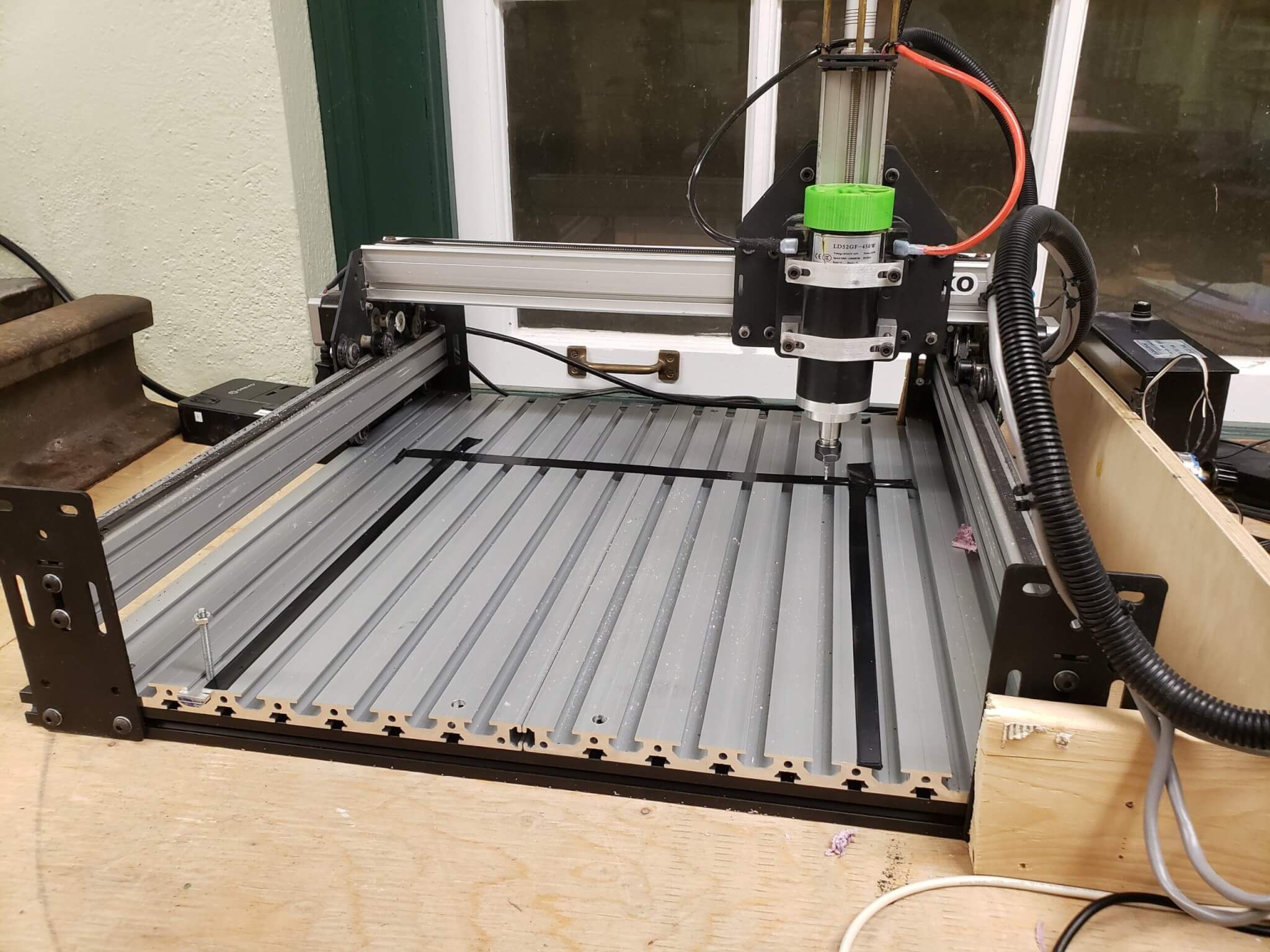
Looking at the bed in the picture below, you can see small channels at the bottom and big channels at the top.

As received, the smaller channels were at the top. The picture is what is looks like after we removed, drilled, flipped and remounted the bed. . Bigger channels give us better support for the material.

Next we need something to tie material down to those bigger channels.

3D print? Hah! Pedal to the metal.

You could 3D print some brackets that will fit in the channels, but plastic won’t hold a screw very well. We want really solid. Metal Master Miro milled out a new set of blocks to perfectly fit the channels, drilled and threaded them, added threaded rods (locked down with the nasty Loctite Red stuff), and cut and drilled a set of metal bars to complete the hold-downs.

There are limits to what you can mill

The black lines on the bed… the inside of the tape represents the limits of where the milling head can go. So you know where to place your material

We ran our first test using the Easel web site that Shari and Craig recommended. As a first test, we used some styrofoam to reduce the risk of damage.

And whaddya know, it worked perfectly. That’s Easel’s test pattern.

Easel requires a live connection to the web and has some limitations on the free version, so we looked for alternatives.

We found Carbide Create – for creating drawings – and Carbide Motion for feeding Gcode to the machine and controlling it. All nice and free and from Carbide 3D, the Shapeoko manufacturer. The website has documentation, tutorials, a great sample project and other neat software – like for carving circuit board patterns. Carbide will accept .dxf files, which means we should be able to use the 2D tools our members learned in our laser cutting classes – Draftsight and nanoCAD.

That’s our project for next week – getting it running with Carbide. And with material that’s a little more challenging than styrofoam.

We are open again!

Finally!

18 long months. That’s how long we’ve been out of our home at the DDO – Richmond Hill’s David Dunlap Observatory.

Mostly, it’s been COVID. But the DDO has not been idle during that time, undergoing a major restoration. We’ll post more about that later.

The DDO is officially a community center of the City of Richmond Hill. Once the provincial COVID rules allowed them to be re-open, we had to work out all our own protocols for access.

And we had to clean up and put things back in order. The restoration made everything…. let’s just say topsy-turvy and leave it at that.

Our members, eager to get back in, jumped at the change to come in, clean up, and get things back in order. Big thanks to Brooke, Craig, David, Daniel, Danielle, Fernando, Karen, Pek, and Ron for all their work.

Our laser cutter – everyone’s favourite tool – and all it’s supporting programs – was brought back to life and tested this evening.

First was testing the CAD program – we will now be using nanocad as the basis for our training.

Nanocad! It’s free! It works!

Then our old faithful laser cutter control PC, after cleaning it up and blowing the dust out, came back to life and did its part.

It didn’t choke on the file from nanocad!

And finally… would the laser cutter choke on it?

It’s working! It’s working!

It all worked out great.

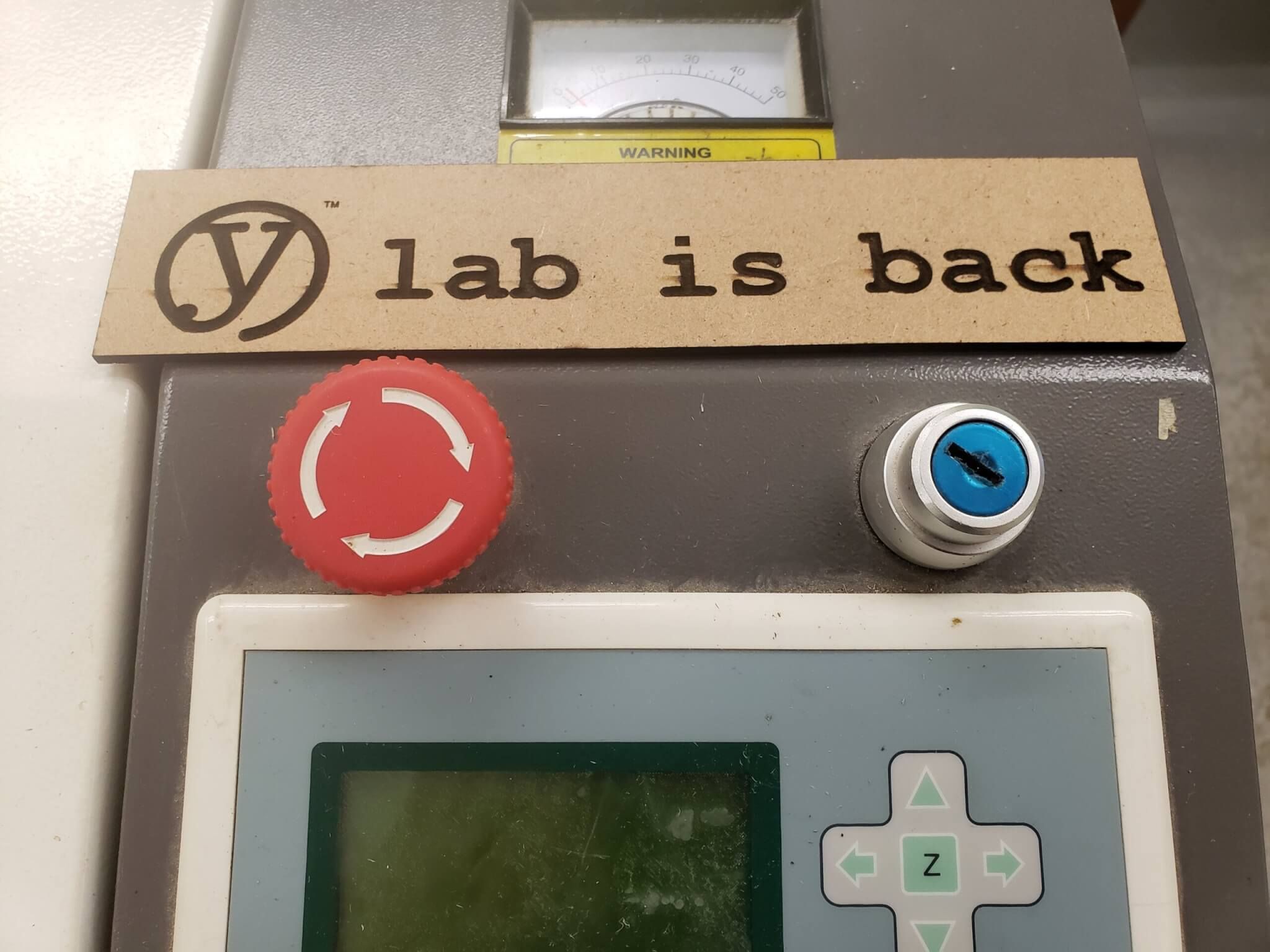
We found and put back in order a few things that had gone missing. The signs for our two rooms, for instance.

This is the room with the laser cutter and other messy things.
This is the one with the 3D printers, classroom and cleaner, less messy things. Or that’s the intent.

We don’t plan on running any open houses or guest nights for a couple of months.

Our members have a lot of projects to catch up on, new gear to set up and train on (more on that later), and we need to see how our COVID protocols and other things work out. They’ve all waited patiently – not one of them asked for their money back! – so they deserve some focused time before we open up to more people.

Stay tuned for more announcements and news.

DDO Black Hole Bigger Than Expected

Not a DDO construction update.

Cygnus X-1, the first X-ray source accepted to be a black hole, is bigger than expected. Possibly the biggest astronomical claim to fame for the giant telescope of the David Dunlap Observatory is its role in the first observations confirming Cygnus X-1 as a black hole.

We haven’t checked lately to see if that big hole they dug around the foundation of the David Dunlap Observatory administration building (our home) has been filled in yet. But that’s not what this is about.

It’s important to understand that it’s not as simple as an astronomer peeking through telescope and screaming “Hey! Look! A black hole!”

According to Wikipedia, a series of mathematicians and astronomers used Einstein’s theory of general relativity’s field equations to predict the existence of ultra-dense collapsed stars – or singularities – that we now call black holes. They would be difficult to detect, because the gravity is so intense that not even light could escape.

In 1964, rockets equipped with geiger counters identified a source of X-rays as one of the strongest X-ray sources seen from earth. That source was ultimately called Cygnus X-1

In 1970, the Uhuru satellite showed fluctuations of the X-ray intensity from that same source happening several times a second.

In 1971, astronomers detected radio emissions that didn’t make sense from the same source. They were looking at a star as the source of the X-ray emissions. But the star they were looking at could not generate the amount of X-rays they were seeing. The star must have a companion that could cause the necessary heating to generate those X-rays. An invisible companion.

In 1971, independent observations at the David Dunlap Observatory and the Royal Greenwich Observatory announced the discovery of a “massive hidden companion” to the star – and this is widely accepted as the first confirmation of the existence of a black hole.

Astronomers could measure the effects of a black hole, but they could not see one – until 2019, when an international network of telescopes co-operated to capture the first image of a black hole and its shadow. It wasn’t a direct observation. It was an accumulation of a massive amount of data from all these radio telescopes. How much data? It took a half a ton of hard drives. So much data that it was faster to fly the hard drives to MIT than to transfer the data over the Internet.

Scientists have continued to study Cygnus X-1, and the latest studies announced in 2021 indicate that it’s farther away and bigger than expected. According to this article, they used a large array of radio telescope dishes scattered across the USA to make the observations.

Cygnus X-1 is now the biggest black hole observed through optical methods, and it’s bigger than the biggest black hole they thought a star in our Milky Way could produce. So it’s back to the old math blackboard to explain it.

Pattern photo created by jcomp – www.freepik.com

The fun never stops.


Image credit: NASA/ Chandra X-Ray ObservatoryC/M. Weiss https://chandra.harvard.edu/photo/2011/cygx1/cygx1_ill.jpg

Antenna science goes to pot

Half-baked or well done?

If you know anything about radio and antennas – and if you don’t, check out our beginner radio and antenna pages – you know that the most basic antenna is a dipole, and a dipole antenna has two sides. All antennas require two sides.

A magnetic mount antenna (magmount) looks like it has only one side. That’s because the other side is the car. Really.

So if you want to use it as an antenna in your house or somewhere else… or if you don’t own a car… or you don’t want to drive your car into the second floor of your house to get that height advantage (it’s been done), what do you do?

The answer from most hams is to put it on a cookie sheet. Not an aluminum cookie sheet, because the magnet (that’s the mag- part of mag-mount) won’t stick to it. That metal you attach the magmount to is known as a counterpoise.

So we thought… is the cookie sheet ideal? What if we got something with a heck of a lot more metal? Better magnetic properties? Science – and idle time under COVID lockdown – demands an answer.

To test, we are using a nanovna – that’s nano for it’s tiny size, and VNA for Vector Network Analyser. Sound expensive? For $50-$60 and it’s an incredible deal. Comparable units used to cost thousands of dollars.

We use the nanovna to measure the SWR – Standing Wave Ratio, the preferred measure of antenna efficiency. SWR of 1 is perfect – all the energy is going out as radio waves. Anything below 2 is generally acceptable when dealing with higher-power HF radios. Above 2, and you need an antenna tuner to compensate.

But first a few caveats:

  • There are a lot of cautions with nanovna, like the need to calibrate within the frequency range for the test. We’re not providing the details here because the nanovna documentation, beginner guides and forums are phenomenal. The cookie sheet vs other pots counterpoise assessments, on the other hand, are sorely lacking.
  • Our measurements are not lab-grade. Every stupid little thing can affect the SWR measurement. Wiggle the antenna wire and it changes. Stand next to it and it changes. Eat a cookie and it changes (we use our cookie sheets for their original design purpose). Formal testing involves setting stuff up in a field outside, fixing the wires, complex instrumentation and more. We didn’t do that.
  • Ground (as in dirt you are standing on) can be an effective counterpoise, or part of the counterpoise. Moving your cookie sheet from a table top to the ground can make a difference.
  • Our measurements are consistent relative to each other. We had some significant variance for the tests for many of the items tested. But from item to item, the variances were pretty consistent.

Baseline: no counterpoise

We started with the antenna on a table (SWR: around 8) , and then for consistency with other measurements, on a plastic case on the basement floor (SWR: around 6). Either way it sucks, but it seems that proximity to actual ground makes a difference.

Our choice of weaponry:

  • The classic cookie sheet
  • A cast iron frying pan
  • A large pot rated for induction cookers

The classic solution: a cookie sheet

The nanovna is tiny device – 15mm thick, but otherwise not much bigger than a credit card. There are bigger versions and people will tell you to spend more $ for them because they’re easier to read. But even then, capturing the screen would be a challenge. Why bother with the larger unit when there’s free software to display the data live on a PC?

SWR, because it’s related to impedance, varies with the frequency. For our tests did a rough scan of the VHF frequency range, from 144 MHz to 146 MHz. The graph shows the SWR ranging from about 1.7 at 144 MHz down to 1.43 at 146 MHz. The exact number for 4 data points are in the table immediately to the left of the graph. 1.43 to 1.7 – all well below the acceptable value of 2, and much better than the 6 to 8 of the antenna alone.

Heavy metal: 12″ cast iron frying pan.

This is one heavy sumofasumthin. You don’t lift it with one hand. And if you’re a cast-iron cooking fan – yes, it’s been properly seasoned.

We don’t have a picture of it with the antenna on it because we forgot to take the picture before we took the antenna off and there was no way we were going to put it back on. The magnet loves the cast iron. It doesn’t want to let go. We can’t even slide it on the pan surface. It took an assistant, profanity and prying with a screwdriver to get it off.

You can see the lovely scratches from the poking and prying.

As for the results… 1.734@144 MHz and 1.375@146 MHz. All in the same range as the cookie sheet.

Big induction pot (dutch oven)

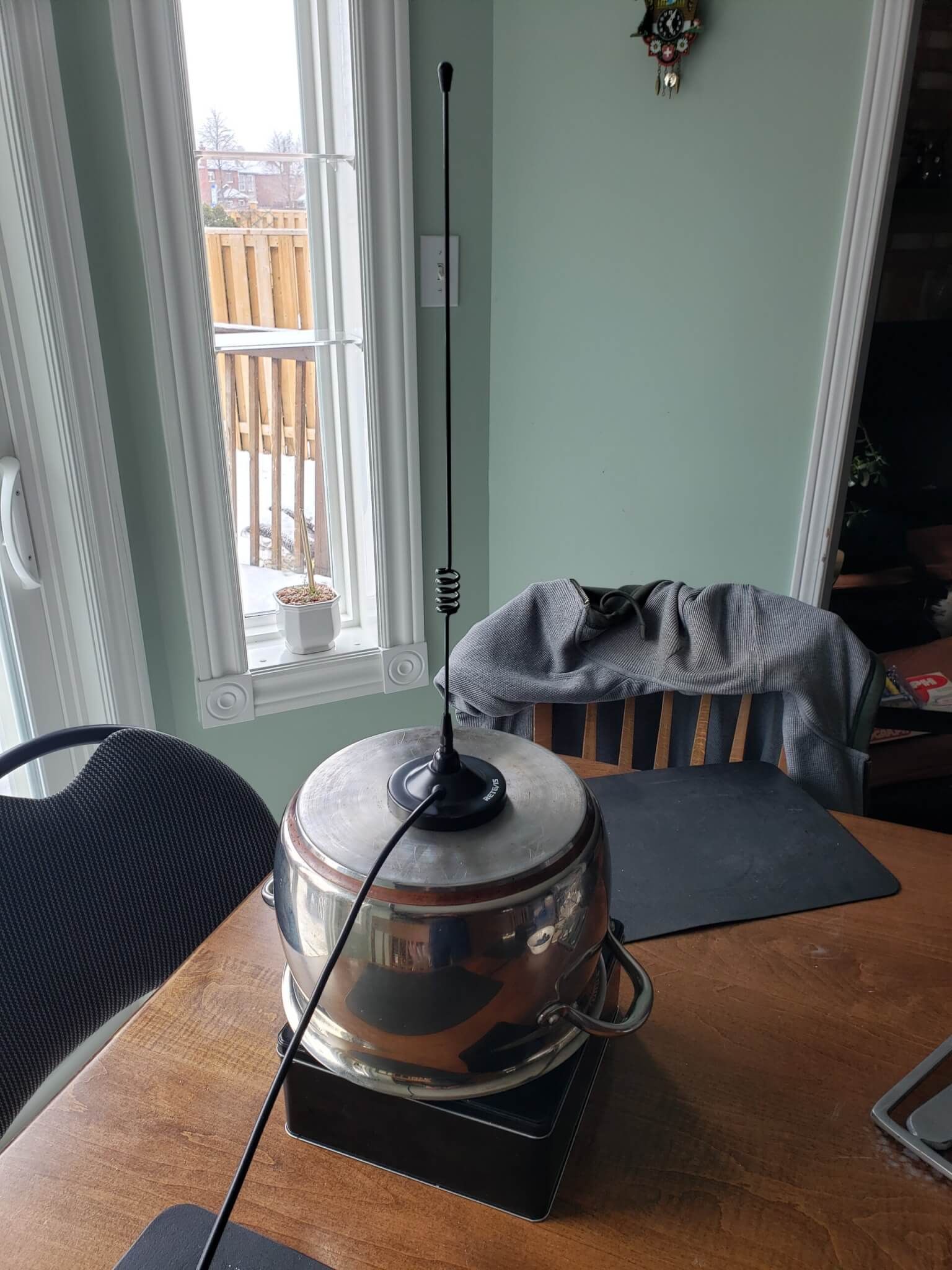
This is a heavy pot – Costco’s own Kirkland brand. It’s not as heavy as the cast iron, but definitely heavier than any other pot we’ve seen of this size. It’s rated for induction cookers, so it’s got metal that responds well to magnets. The magnet definitely likes it, but not as much as the cast iron. We could slide it and get it off without drama.

The readings: 1.590@144MHz to 1.283@146 MHz.

Impressive. Less metal and less magnetic adherence than the cast iron, and less surface are than the cookie sheet, but better than both.

Combos

What the heck, we’ve got all the pots here… let’s try some stacking.

Cast iron and cookie sheet gave us 1.43@144MHz to our lowest-of-the-day 1.18@146 MHz.

The most surprising result was the induction pot on the cookie sheet. It’s worth showing the graph for that one.

Nice, flat 1.28@144MHz (lowest of the day) to 1.30@146 MHz.

Analysis and hypotheses

Mass of metal doesn’t seem to be a factor, since the cast iron pan didn’t do much better than the baking sheet. Our dutch oven did best, and it has a clear height advantage over the other two, and the height was further increased with the cookie sheet underneath. Small length differences make a difference for any antenna type.

So we need a few more tests to better differentiate between height, weight (quantity of metal) and magnetic attraction.

Next tests

We brought in a couple more items. We’ll only report the relative numbers, since the test conditions were different – i.e. we need some daylight once in a while and crawled back upstairs. (It’s OK. It’s my basement, not my mom’s).

Our additional test candidates:

  • A cookie tin that, on it’s side, is about the height of the dutch oven
  • A really tall aluminum turkey deep frying pot

The aluminum pot was useless. Magnet doesn’t stick to it, and high SWR. So the magnetic link is critical.

We tried the cookie tin lying flat and up on its side. On it’s side, the height is comparable to our dutch oven – and the results were comparable as well. When sitting flat, the results were not as good.

So:

  • Weight is not that important
  • Height is critical
  • Magnetic attraction is critical

And combos?

Cookie tin on top of the dutch oven gave us better results than either one alone. The relative results:

  • Vertical tin: 1.20@144MHz and 1.30@1.46 MHz
  • Dutch oven: 1.20@144 MHz and 1.24@146MHz
  • Both: 1.10@144MHz and oops-didn’t-write-it-down

So height seems to win the day,

More tests could be done. But we had to release the pots for supper preparation.

For completeness: we tried the dutch oven on top of the aluminum turkey pot to see if magnetic adhesion to the dutch oven and dutch oven contact to the aluminum would work. It didn’t.

Final conclusions

The ultimate reading is how well others read your signal. But before you start bothering other people, a nanovna is a great way to figure out how well thing are working, and, in particular, how they work in your particular setup. Simply moving from one place to another can affect things.

A cookie sheet is not the best solution – so if you don’t have on or only have an aluminum one, don’t go out and buy another one just for your radio.

Our fried VE3IPS says to stick the magmount on a file cabinet… but ours is in the basement. The test would be pointless. Your results may vary.

Big tall pot that sticks to magnet is the best starting option. Then work on combos.

The cookie tray goes back to the cupboard for now.

The cast iron frying pan and the other pot go back to what they do best.

Click for recipes for fried chicken or corn bread.

Yes, we did make this stuff. The maker movement isn’t just about technical stuff. Man does not live by tech alone.

Baofeng DM-X/DM-1702: Is this the saddest radio ever?

If only as a warning to others.

Way back in 1976, General Motors introduced the Chevette, a sad little cramped hatchback that, when equipped with the automatic transmission, could barely drag itself above 100 km/hour. Friends had rusted-out Pintos and Toyotas that we would rather ride in than a new Chevette. GM was the biggest automaker in the world. They had engineering resources in Europe and Asia that knew how to make small cars. There was no excuse for this sorry little atrocity. They should have known better. That’s how we feel about Baofeng and the DM-X / DM1702.

Yeah, we’re dumping on on this radio. If you have the misfortune of having bought one, keep reading because we provide a bunch of links and info to make it usable.

We really don’t want to dump on Baofeng. They make some great cheap radios. We’ve written an entire how-to guide on the UV-B6. It’s been a rugged little starter radio and we’ve recommended it to lots of people. Lots of cheap accessories. A Scout group we helped out with their ham certifications all have them, and they’re still going after two years and plenty of abuse.

With a goal of trying out one of the digital radio protocols for the first time, we ordered up a Baofeng DMX, which supports the DMR spec. It’s sometimes referred to as the DM-1702, and on their official web site, it’s the DM-1702B. These three are essentially the same radio but with different cases and button layouts.

The manual

This is the manual that came with the radio. The picture looks nothing like the radio we received. Front panel is different. Side buttons are in different locations. Pressing a side button provides a completely different function than what the manual says. Different… and we can’t figure out what it’s doing.

So we do some web searches. There is an official manual on the Baofeng web site, but… it’s a radio manual. They are never very good. The manual lists features that this radio doesn’t have. Like the flashlight.

Why do Baofengs have a built-in flashlight?

To help you find your good radio.

VFO mode… or not

OK, let’s try entering VFO mode (that’s ham-speak for “enter the frequency manually” mode, instead of using presets).

No combination of buttons will put the thing in VFO mode. It’s presets or nothing. A search of the manual shows that you can go through a few level of menus to enter a frequency and other parameters. This is usually only required for duplex/repeater setup.

Search the web… all you find is the sobbing of radio buyers crying out for a VFO function. It doesn’t seem to exist. You have to run through the menus. Top left button is Menu then Settings -> Program Radio -> RX Frequency.

Update: there are a couple of ways we’ve figured out to move from presets to VFO. That’s in the programming section below.

Keep going from that menu… enter RX (receive) and TX (transmit) and the CTCSS frequency for a local repeater and we’re good to go.

Hit the transmit button and…

Local interference

SWEET JUMPIN’ JEEBUS IN A FARADAY CAGE! WHAT’S THAT NOISE?

As soon as I hit the transmit button, the paper shredder behind me starts running. Try it again. Same thing. Consistent, repeatable test from up to 4 feet away. BUT THE SHREDDER HAS NO REMOTE CONTROL FEATURE!

This shredder has some kind of touchless sensor that detects when you insert a piece of paper. Must be triggering it somehow -maybe induced voltage on the sensor’s wire acting as an antenna?

I’ve tried it in a couple of other rooms around the house. It induces clicks and buzzes in a clock radio that isn’t even on.

I took off the included antenna and hooked it to the cable to the outdoor antenna. No interference. So whatever it is, it’s coming off of the antenna and not the circuit board. Switched to a whip antenna. Same interference, so it’s not a defective antenna.

Note to self: hook up the RTL-SDR and see what the splatter looks like.

Update: other radios have the same effect – so it appears it’s the shredder’s problem and not specifically the DMX’s fault.

True dual-tuner operation

Finally! Something positive to say!

It is a true dual-tuner radio and you can monitor two channels simultaneously.

One of the side buttons switches between the A and B frequencies. Punch in separate frequencies for A and B, and it is monitoring both simultaneously. Hitting the top-right Back button mutes and unmutes the second frequency.

Programming the radio

A quick check to see if Chirp supports the radio… and no luck.

Oh. Right. It’s a DMR radio. That means the dreaded code plug. Which requires software. Which was not included with the radio.

First try for software: contact Baofeng

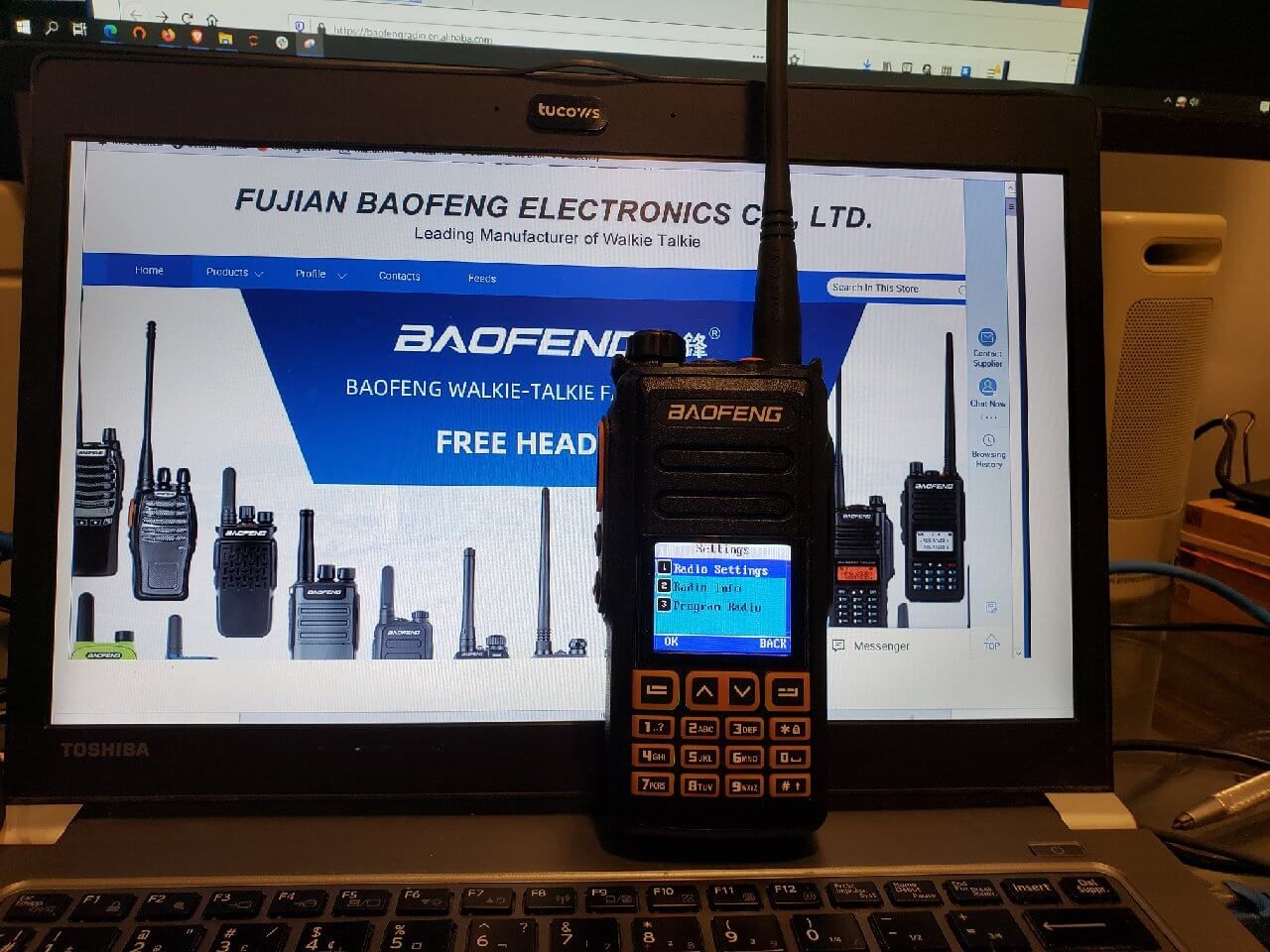
It’s hard to find the real Baofeng company website because so many websites selling their radios falsely claim to be official Baofeng sites. With a little digging, we found these official company sites for Fujian Baofeng Electronic Co:

We put messages on all three asking where we could get programming software and firmware download for the radio.

Update: We got a message back from the corporate site, where we found the radio listed as the DM-1702B, which for download shows only a manual. They referred us to the page for the DM-1702, which contains the most recent version of the programming software V1.00.79 – with Chinese installation menus. After a few failed attempts – we had to guess which buttons are OK and Cancel in Chinese – we got it installed. It comes up in Chinese, but if you hit the button in the picture below, it switches to the English menus.

But… despite repeated requests… they don’t put the firmware updates on the website. Feel free to submit your own messages and up the pressure.

Second try: search the web

We found various forums, videos and Baofeng-selling radio sites that have a variety of firmware and programming software versions. Some claim that some of the releases had viruses and had to be cleaned up.

To make a long story short and save you some pain:

  • Programming software and firmware indicated for DMX or DM-1702 works.
  • Programming software for other Baofeng radios like the DM-1701 and DM-1716 does not work for this radio.
  • Programming software and firmware are often found together in a bundle.
  • The programming software is an executable called either CPS.exe or CPS2_extra_menus.exe.
    • The latest version we found is 1.00.78 Update: see above for link to the programming software on the Baofeng site. It has the extra menus.
    • The software seems to be specific to the radio model. The CPS.exe for other radios doesn’t work.
    • The _extra_menus software provides extra screens requiring a password. Best not to touch the values… but if you’re curious, the password is 66660501.
  • The firmware to download to the radio is in a file of the form fw_2.2.22-decrypted.zip. The version without decrypted in the name doesn’t seem to load.
    • Our radio shipped with 2.2.14
    • 2.2.22 is the most recent we’ve found
    • To display the firmware version: Menu -> Settings -> Radio Info -> Versions

We recommend upgrading to the latest software before configuring the radio. A few things were cleaned up since the earlier version.

Upgrading the firmware

This video provides instructions and links to download the software and firmware, and takes you through the entire process. If for some reason the links are missing, we saved a copy here with CPS 1.0.78 and firmware 2.2.22.

You will need a programming cable – and the good new is that any micro-USB cable will work. There is a cable from Baofeng that plugs into the mic jacks, but it’s not required.

The process is straightforward:

  • Download and start the CPS software
  • Turn off the radio and connect it to the PC with the USB cable
  • Hold down the # key while powering on the radio
  • From the CPS program, select Program -> Tool and pick your firmware

Note: Functions for loading/unloading configuration or firmware in the CPS software will pop up a window that looks like something is happening… but it sits there doing nothing. You have to hit the OK button to get things started.

Configuring/programming the radio from CPS

After starting the CPS program, you need to read the current configuration from the radio. Then all the screens are enabled.

Here are a few highlights.

It’s a good idea to save the configuration before making any changes. That way, you can restore it if you really mess it up.

Buttons

The most useful part of the CPS program is the ability to configure the three buttons – the two on the left side, under the transmit button, and one on the top, under the General Setting -> Buttons screen. The three buttons are identified on the screen as follows, wity our preferred settings for them:

  • Side-bottom (immediately under transmit): Middle
    • Short press: Up and Down Screen (for A/B switch)
    • Long press: VOX
  • Side-middle: Moni
    • Short press: Monitor (turns off squelch)
    • Long press: Adjust power level (low 1W or high 5W)
  • Top of the radio: Top
    • Short press: Scan
    • Long press: Battery power indicator

The P1, P2 and P3 buttons are not available on this radio.

There are a bunch of other functions that can be programmed on to the buttons. Just remember that many of them don’t exist on the radio.

Parameter, Menu and other CPS screens

Lots of different settings that you either can’t set from the radio, or that are easier to set on the screens. Have fun looking around.

Look on the Parameter page for things like enabling GPS and APRS.

DMR and station pre-sets

This is where things get a little hairier. We’re not going to get into a detailed explanation of DMR – a sort-of-standard for digital communication – because there is lots of good information elsewhere.

What you need to know: All channel presets on this radio – analog or digital/DMR – are tied to a DMR zone. If you are setting up analog simplex or duplex/repeater channels in the Channel menu of CPS, you must do the following or they won’t show up on your radio presets.

  1. Assign the channel to an RX Group List – do not leave the value as None
  2. . Assign the channel to a Zone on the Zone menu.

DMR Usage

We’re still working through this. Miklor’s page on the DM1702 says that you can’t monitor a digital talk group on a repeater. We’ve found that when connecting to a repeater, we are hearing whatever is on the channel.

What we have not been able to do is confirm DMR transmission from the DM-1702. Even connecting to the Parrot 9990 channel – it’s a test channel that repeats back what you transmit – we can’t get a response back.

But we are new to DMR, so maybe we’re making a mistake. Maybe it’s something to do with the local repeaters. The local club is heavily biased towards Fusion, a different digital radio spec.

Well keep working it.

VFO – with frequency display (no label/text)

In the CPS configuration program, after you have read in the config from your radio or from a file, you can go to General Settings -> Parameter. Near the bottom right corner, there’s a setting for Frequency/Channel Mode. If you set it to Frequency and update the radio… Yeah! You can enter the frequency manually!

To switch between VFO and preset mode, hold down the Back button (top right corner) for about 5 seconds.

Unfortunately, in this mode, presets are only displayed with the frequency. The name/label is not available.

VFO – with frequency label

This may be a blessing in disguise. The problem with VFO is that if you’re doing it with repeaters, entering the offset and CTCSS setting from the radios’ menus can be difficult.

The DMX makes it really easy to do from the settings screen.

So here’s how we handle VFO if we want names instead of the frequency displayed:

  • From the CPS menu, go to Channel -> __Channel
  • At the bottom of the list, add three channels
    • VFO3DMR
    • VFO2CT, channel type analog, with CTCSS
    • VFO1ANALOG, channel type analog, with no CTCSS

By doing it in this order, when you scroll back down from presets 3…2…1 you then hit your VFO channels. Don’t forget to assign the channels to Zones, or they won’t display.

To assign as frequency as if you were doing VFO:

  • Go to the preset you want to modify (one of the three we set up)
  • Menu (top left button)
    • Settings (might need to hit up or down arrow(
      • Program Radio
        • You are now making changes to the VFO channel you want to modify!
        • The menus make it easy to change each of the settings
        • The settings are appropriate to analog or digital based on the preset type
        • For the frequency, you will get a box with a frequency. Hit OK again to go to the edit screen. The top right button is now a backspace key, and you can use the numbers to enter your frequency. Hit OK when done.

I use a separate preset channel for CTCSS because if encode or decode settings are on for the channel you picked, you might forget about it, and you won’t be able to transmit or receive unless you clear them.

Sending DTMF tones

  • Be sure you are on an analog channel.
  • Press the # key (will have no effect if on digital channel)
  • Enter your tones.
    • Up/Down arrows: AB
    • Menu (Top left corner) button: C
    • Back (Top right corner) button: D
  • Press PTT to send

If you make a mistake and don’t want to send, there is no way to clear what you entered. Power the radio on and off. Seems dumb, but then again, on any other radio, the tones are sent as your press the keys.

Entering text

If you want to type in a message, enter a label, or whatever else that requires text, the behaviour is, at first… bizarre. You can enter a couple of characters, then Chinese characters start showing up. That’s a good thing if Chinese is what you want. As for the rest of us…

In the upper-right hand corner of the screen, you see the letters PY. That means the radio is set for Pynyin text entry, a method for entering Chinese characters using the western alphabet.

If you click the # key, you can see the PY change. It will cycle through four character sets:

  • PY: Pynyin
  • 123: Numbers
  • abc: Lower case letters, with the zero key as space
  • ABC: Upper case letters, with the zero key as space

For editing:

  • Up-arrow: cursor left
  • Down-arrow: cursor right
  • Back key(upper-right corner): backspace/delete

If you need spaces when entering numbers, you need to back-and-forth to the alphabet modes.

If all else fails…

This forum has been a great source of information and has an active community around this radio. One of the posters on the forum shares a google drive with firmware updates. Before using any of the updates, be sure to read through the forum for words of advice and caution.

When using the forum, you’ll notice a skinny vertical slider bar on the right of the window. Pull it down to the bottom to get the most recent posts and work your way back up.

The forum has a post we have not tested yet on configuring the radio for APRS.

Conclusions

With a bit of work… actually a lot of work – the DMX /DM-1702 becomes usable. We have verified that it can receive DMR, but maybe because of our own experience with DMR – it’s our first attempt – we have not been able to confirm transmit capability.

The real problem is the Baofeng support for this radio. They’ve made a couple of firmware upgrades, but they won’t publish them on their own site. Finding the upgrades and the software to feed them into the radio is a bit of a nightmare. There’s no excuse for this – Baofeng has the website already configured. All they need to do is drop in the files and put up a link.

It’s disappointing, because we think the radio is one firmware update away from being really usable.

In the meantime… it was cheap, and for the price we paid, it’s a good, basic, true dual-tuner radio. We ordered it directly from China. For what local dealers are charging – forget it. We’ve learned a fair bit about DMR and code plugs… and have a lot more to learn.

But don’t buy it. If you already bought it, like we said at the top, we put up this page to help others who made the same mistake we did.

And I have a really useless remote control for the paper shredder.


Change history:

  • 2021-02-19: Added section on text entry

A cheaper antenna: the Red Green J-Pole

What else would you expect?

People make J-Pole antennas out of all kind of things… copper pipe… twin-lead/ladder line. But who has that kind of stuff lying around the house? And the tools to work it?

Everybody has speaker wire!

Old speaker wire. Now that’s something a lot of people have lying around. If you took a ham radio class, (and you should! Right here!) you would know that the extra length of it lying behind the speaker or the amp is not a good thing – it acts as an antenna. So why not use it to make a real antenna?

Bonus: when you split it, you might have enough for two antenna!

Next we make the classic J-shape. Strip down some old co-ax, strip the speaker wire at the right places, and connect in the shield and the centre wire at the right places. Since normal people don’t have soldering irons, seal it all up with electric tapes. And use some cardboard to keep that all important spacing.

Add coax, cardboard and electric tape

We don’t need to detail this too much. There are already way too many videos out there about how to make J-poles with ladder line. Look it up.

Looks a little loose, but don’t worry. We secure it with… more electric tape.

Now we need to secure everything so the wires are at a constant distance from each other.

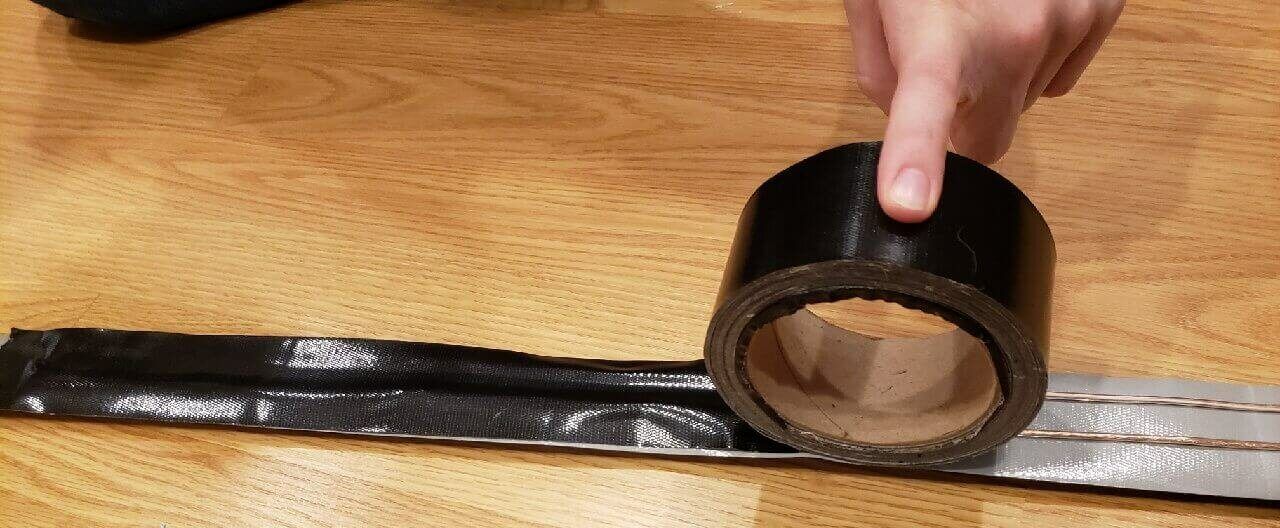
Lay out a nice strip of duct tape

Lay out some duct tape, and use a few thumb tacks to keep it nice and taught. Everyone has some of those.

Carefully lay down the speaker wire in the classic J-Pole pattern.

Seal everything in place

Secure everything in place with… a nice top layer of duct tape.

Top layer of tape to finish it up

Press and seal all along the whole length to secure everything.

Rolls up nicely – just like the finest ladder-line antennas!

First tests on the cheapo radio show its working. More comparisons later. Its supper time.

Post a comment if you know the dielectric values for duct tape.

And don’t try this at home until we’ve reported back on the SWR!